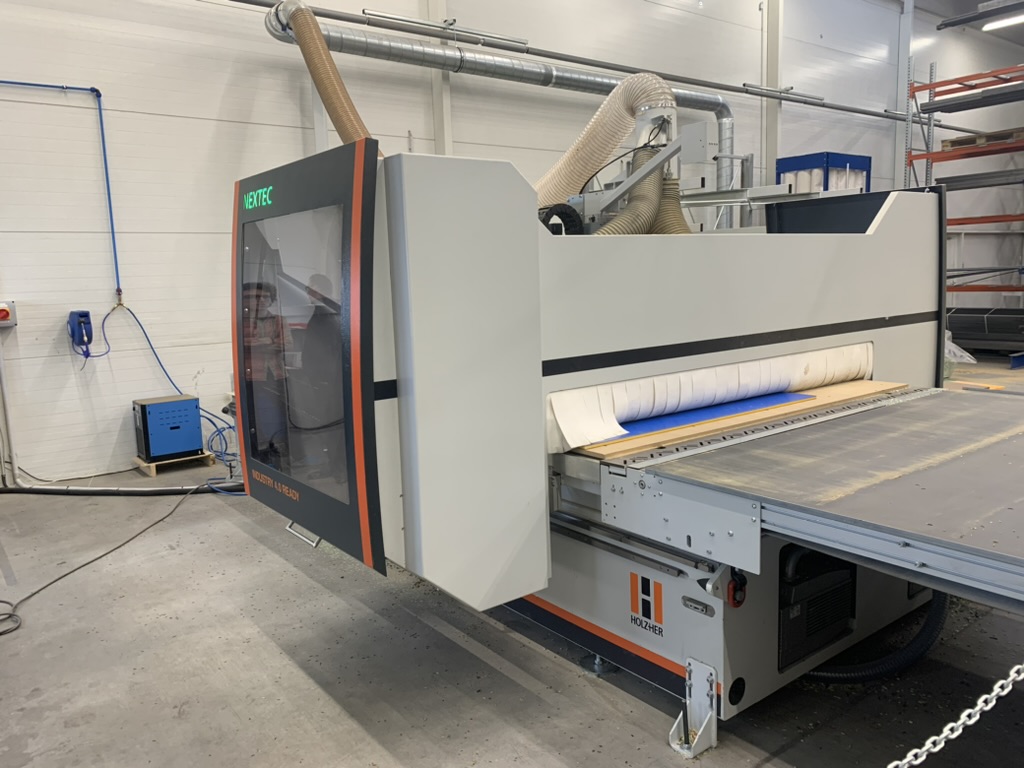
Modern custom woodworking and furniture manufacturing demand maximum efficiency — from the first 3D design all the way to the final cut on the CNC machine. If your shop runs Holzher CNC machining centers on the WOP-based NC HOPS control system, and you rely on the flexible cloud-based CAD/CAM platform Autodesk Fusion for design, the key to a smooth production flow is getting the integration right.
In this article, we’ll walk through how to connect Autodesk Fusion to NC HOPS using a specialized postprocessor from CCSOFTCZ, and what to watch out for during setup so you avoid costly mistakes on the shop floor.
Quick summary
- Problem: Manually re-programming parts on the Holzher NC HOPS panel after every design change wastes time and introduces errors.
- Solution: A CCSOFTCZ postprocessor connects Autodesk Fusion's CAM module directly to NC HOPS, generating ready-to-run .hop files.
- Supported machines: Holzher CNC machining centers running the NC HOPS (WOP-based) control system.
- Output format: .hop files with native milling, drilling, saw, and aggregate operations.
- Main benefits: associative data, fewer shop-floor errors, faster production preparation.
- Required input from customer: machine model, tool list, active aggregates, and sample NC code.
Why connect Autodesk Fusion and Holzher (NC HOPS)?
- A seamless workflow. There’s no more manual redrawing of parts in shop-floor software — the design from Fusion is transformed directly into a machine-ready program.
- Associative data. Change a cabinet dimension or a drilling position in the 3D model in Autodesk Fusion, and the CAM toolpaths — and the resulting NC code — update automatically.
- The strengths of both systems, combined. Fusion delivers advanced CAD modeling and CAM strategies (including nesting and 5-axis machining), while NC HOPS on the Holzher machine gives you precise control over aggregates, vacuum cups, and the actual cutting on the shop floor.
Curious what else we support? See our full list of Autodesk Fusion postprocessors or the dedicated Holzher NC HOPS postprocessor page for licensing and trial details.
Running a Holzher CNC on NC HOPS and want a faster path from design to cutting? Talk to us about setting up the CCSOFTCZ postprocessor for your machine.
Get a free consultation →How to import and configure the Holzher postprocessor in Autodesk Fusion
To correctly export data from Fusion into the format NC HOPS understands (.hop files), you first need to install the correct postprocessor from CCSOFTCZ. Follow these steps:
1. Import the CPS postprocessor file
- Open Autodesk Fusion in the Manufacture workspace.
- In the top menu, go to the Manage tab and click Post Library.
- Choose whether to save the postprocessor Local or to your Cloud license.
- Click Import CPS file and upload the Holzher / NC HOPS postprocessor supplied by CCSOFTCZ.
2. Set the correct origin (WCS — Work Coordinate System)
For the machine to know exactly where the part starts, the zero point must be defined correctly in the CAM Setup.
- In Setup, choose Milling as the operation type.
- For the Stock Point, select the top of material as the zero point. This guarantees accurate milling and drilling depth regardless of any tolerance in panel thickness.
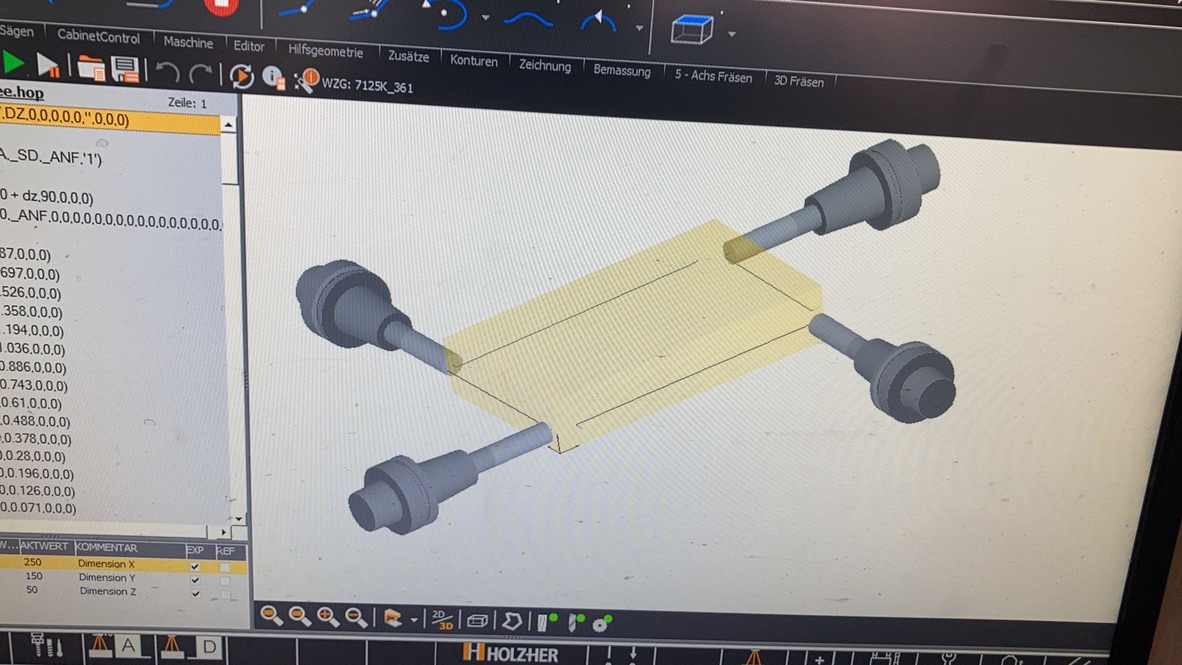
3. Configure the postprocessor (feeds and speeds)
When generating the NC code (Post Process), you’ll find an important property in the menu:
- Output feed from CAM. If this box is checked, the feed rate and spindle speed values you defined in Fusion are written into the
.hopfile exactly as set. If left unchecked, the Holzher machine pulls feed and speed values automatically from its own internal tool database instead.
Common problems and how to fix them
Moving from a general-purpose CAM system to the parametric, WOP-based NC HOPS environment surfaces a few Holzher-specific settings that are easy to overlook. Here are the two most common ones.
Missing start point error
If NC HOPS reports a missing start-point error, or skips lead-in moves entirely, check the Heights settings in the CAM operation in Fusion.
Key rule: the Clearance Height, Retract Height, and Feed Height planes must not all share the same offset value. Each of these three heights needs to sit at a genuinely different level — otherwise the postprocessor has no way to generate a valid start point for NC HOPS.
Optimizing drilling and horizontal aggregates
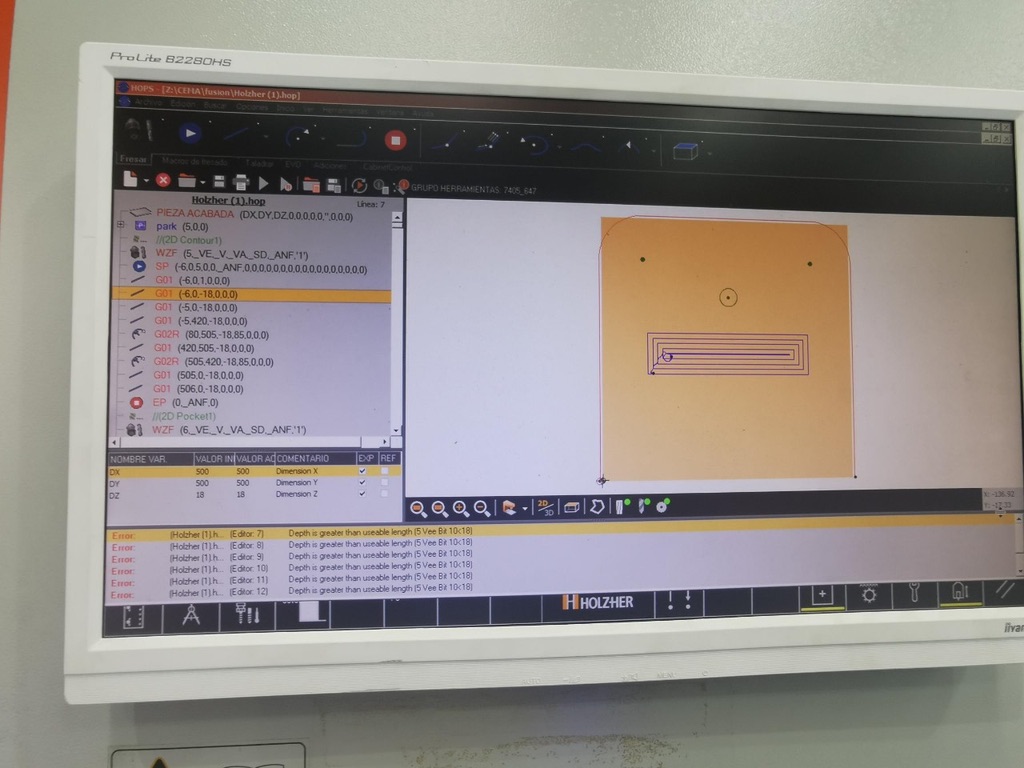
The CCSOFTCZ postprocessor automatically optimizes drilling operations. Holes are generated with their exact bit diameter, and the machine’s control system picks the correct tool from the drilling head on its own.
Watch out for horizontal drilling. If you’re drilling from the side — left, right, front, or back planes — and the working plane changes between operations, it’s essential that every tool involved has a distinct Tool Number assigned in Fusion. Skipping this step risks a tool collision or the machine misreading the program.
Conclusion
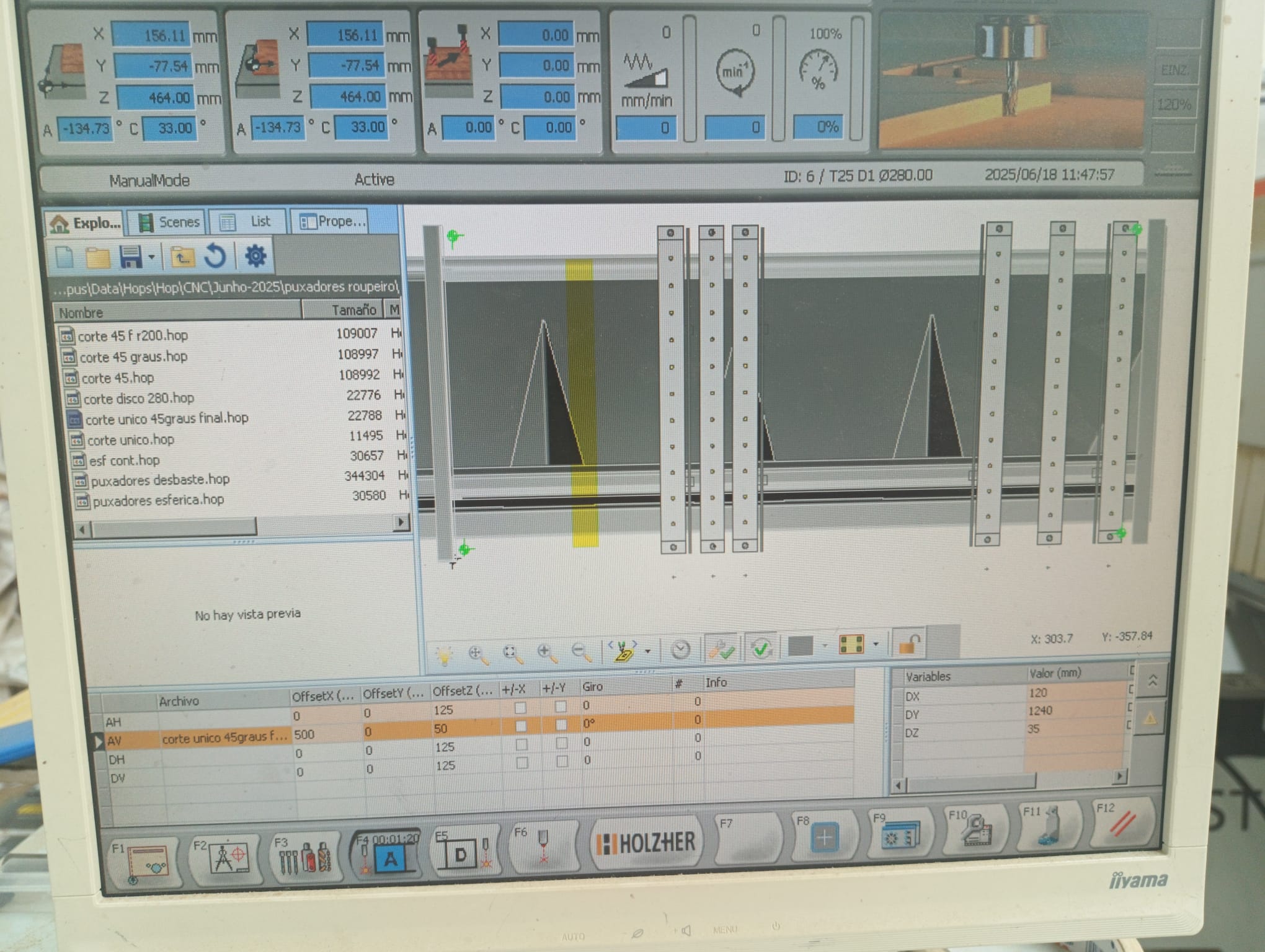
Integrating Autodesk Fusion with Holzher CNC via NC HOPS removes the barrier between design and production. The investment in a properly tuned postprocessor pays for itself quickly — you eliminate the human error that creeps in from manually re-entering programs at the machine, and jobs move through the shop faster.
Running an SCM machine instead of Holzher? Read our SCM + Autodesk Fusion XCS postprocessor guide for the equivalent workflow.
Need a postprocessor tailored to your specific Holzher machine, or hands-on technical support getting it running? Get in touch with the CCSOFTCZ team — we’ll make sure the integration runs smoothly in your production environment.
